Plan in the same space.
Use text, stickies, drawing tools, frames, and comments alongside your nodes. Lay out a storyboard and present its ordered frames.
Inside the studio · Private beta
Choose your AI models and build a reusable generation workflow. Follow the results into versioned takes, team review, and the edit. Then return to the exact saved canvas behind a take and keep creating.
Start the tourActual application screenshots. Select an image to open its full view.
01 / Canvas & models
Keep references, storyboards, and working nodes together. Connect the inputs that shape a shot, see the results on the canvas, and keep your assets close at hand.
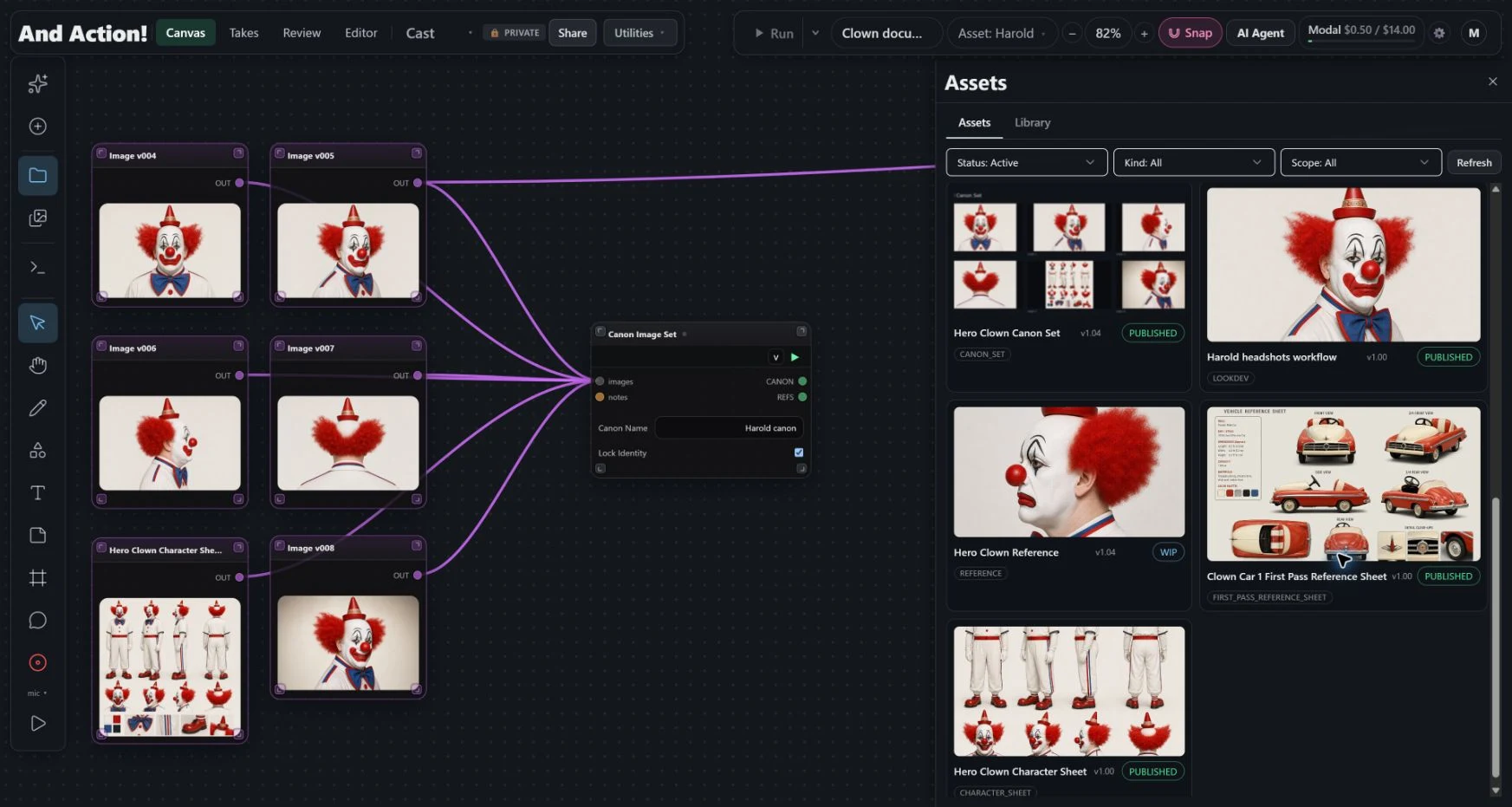
Use text, stickies, drawing tools, frames, and comments alongside your nodes. Lay out a storyboard and present its ordered frames.
Wire references and creative operations together. The graph makes the relationships between inputs and results visible.
Bring existing work into the canvas, build reusable reference sets, and draw on published assets from the Studio Library.
02 / Takes & provenance
Choose a specific take version and reconstruct the exact saved canvas workflow that created it. The nodes, connections, inputs, and settings come back together, ready to inspect and use.
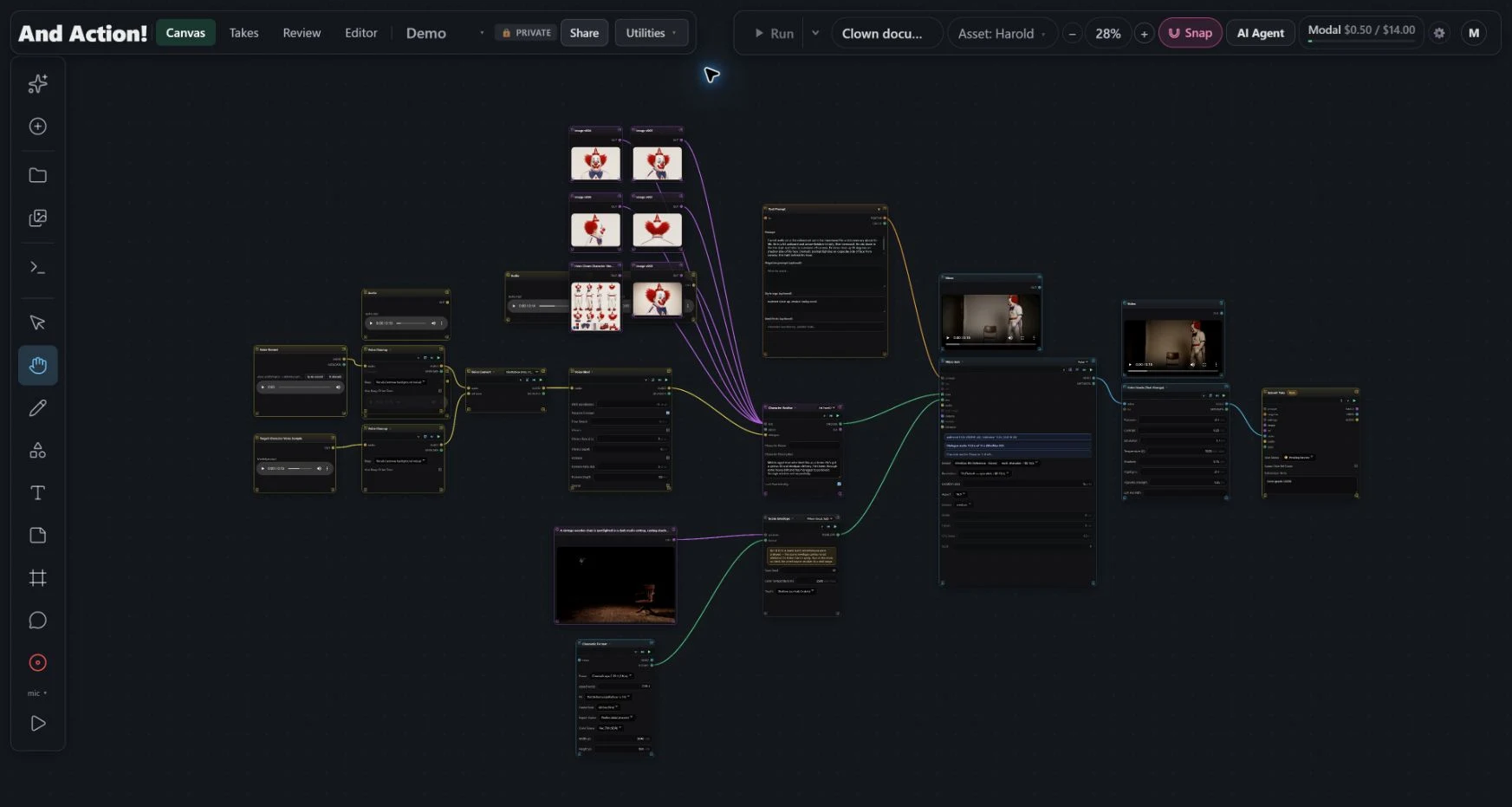
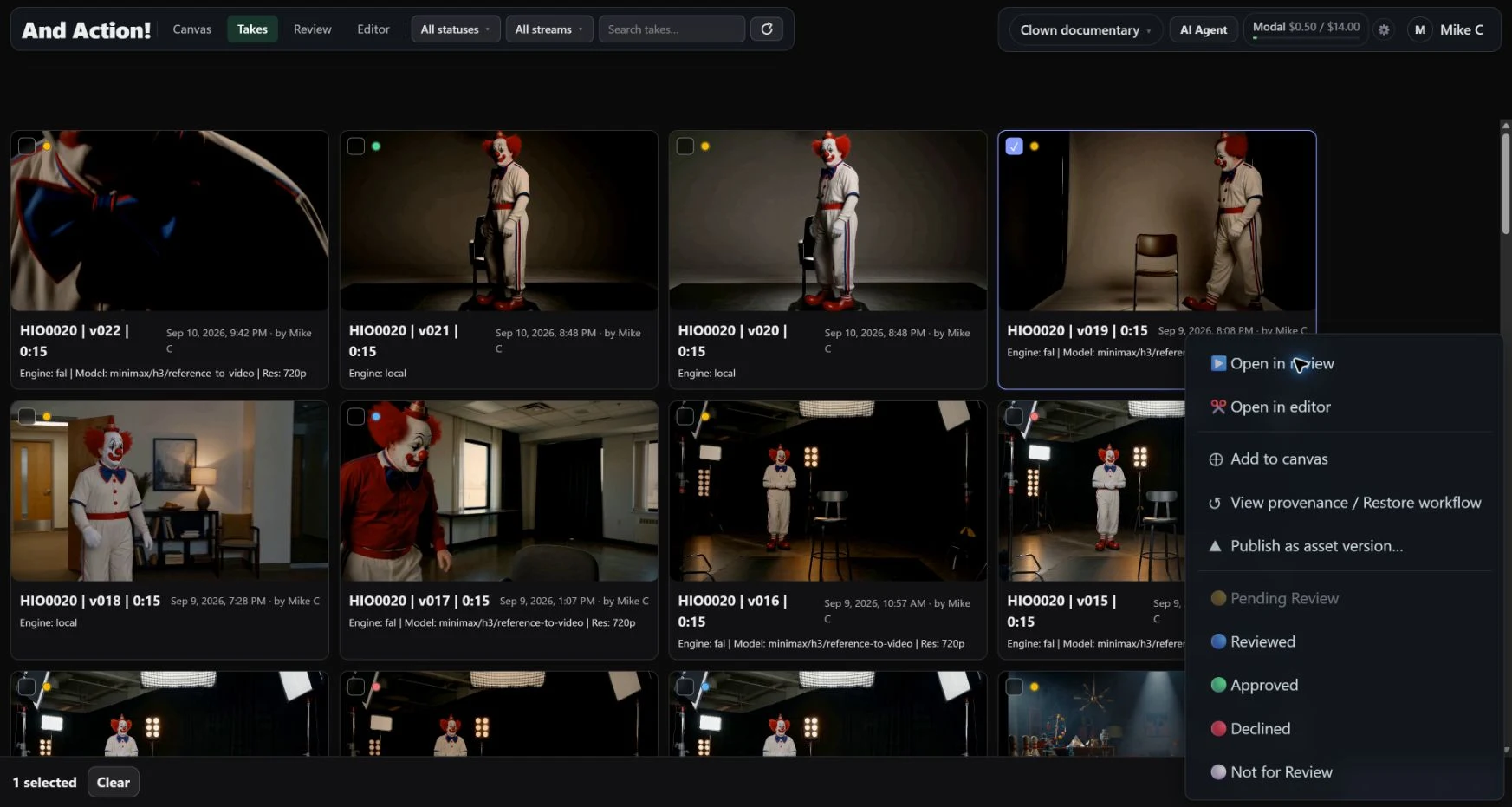
Right-click the take you want to revisit and choose “View provenance / Restore workflow” to open Take History on the canvas.
Restore that version's saved graph. Inspect how the nodes connect and the inputs, prompts, and settings behind the result.
Use the restored canvas directly. Adjust a prompt, swap an input, or extend the workflow for the next iteration.
03 / Templates & execution
Browse templates by what you want to make, open one on a new canvas, and customize it. When you're ready, choose the part of the graph you want to execute.
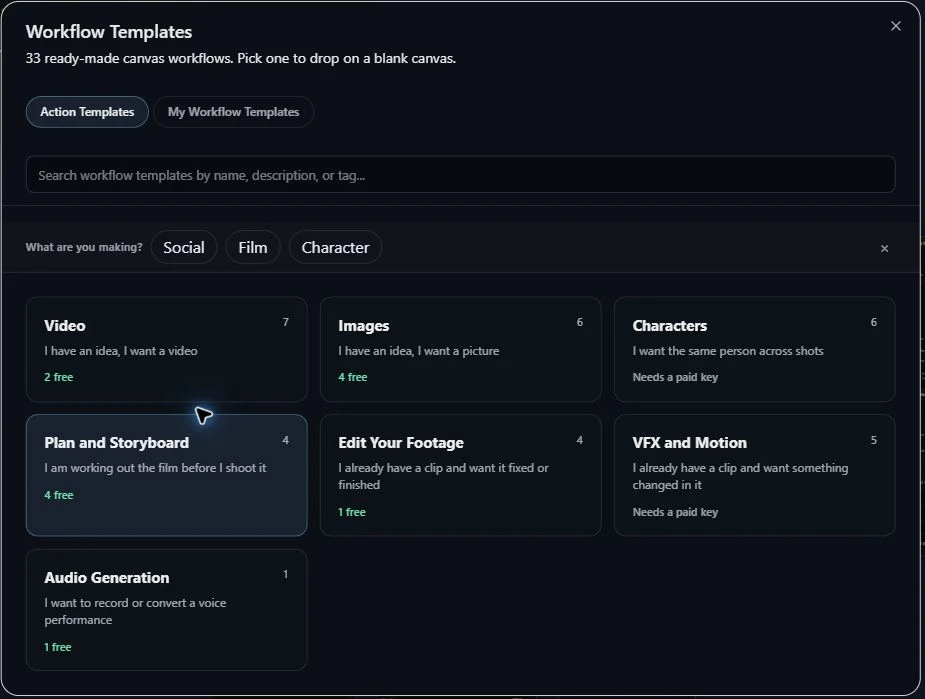
Templates bring connected nodes onto the canvas so you can inspect the workflow before running it. Change the script, inputs, or settings to suit the project.
See the Script to First Pass canvas ↗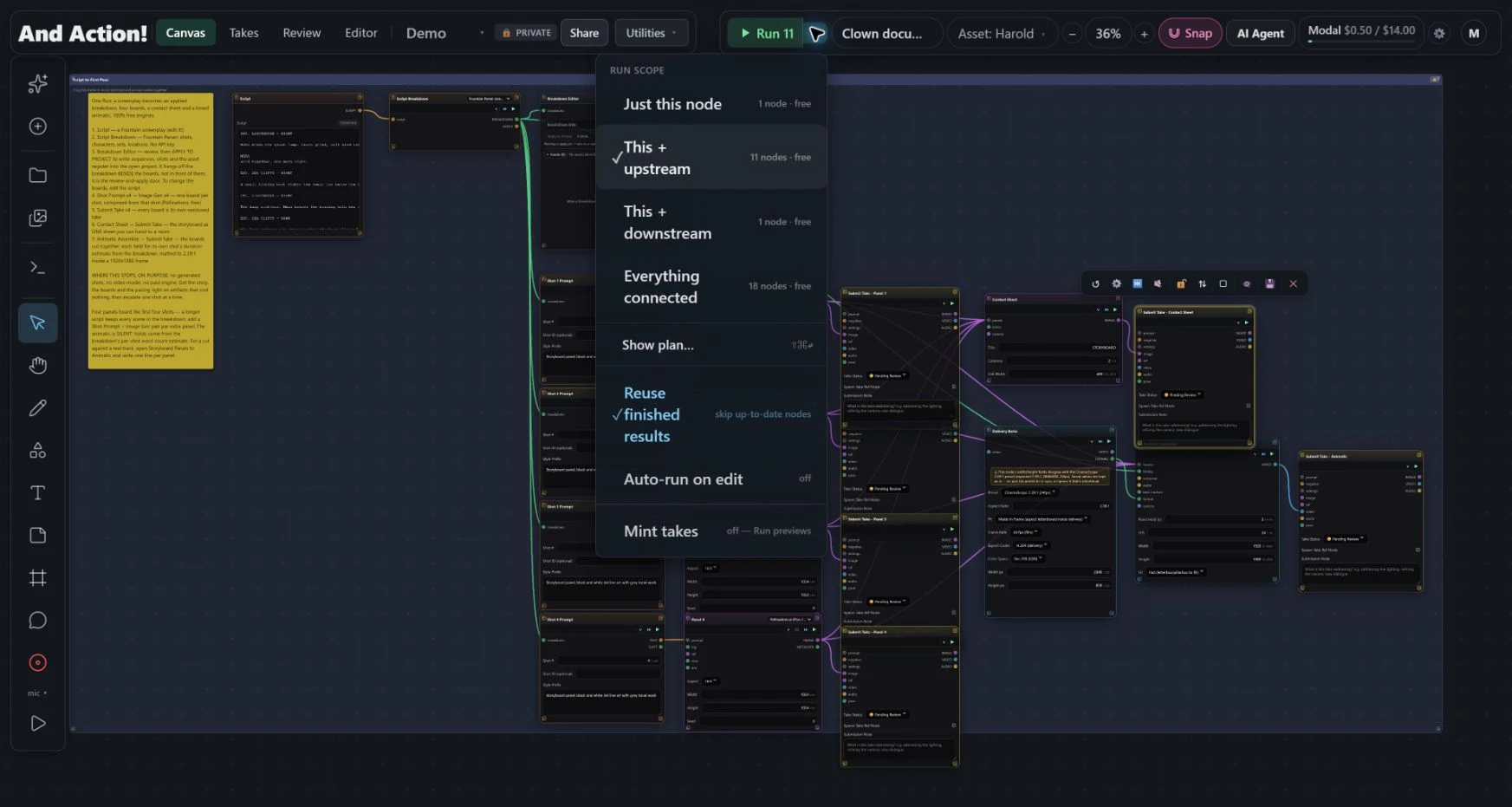
Run a node, its upstream dependencies, its downstream chain, or everything connected.
Keep finished results as you iterate, skipping nodes whose results are still up to date.
Explore with previews, then save results as versioned takes when you want to retain the work.
04 / Review
Show exactly what needs attention. Play and scrub takes, draw on the image, and keep notes connected to the shot and its version, whether the team is together or working across time zones.
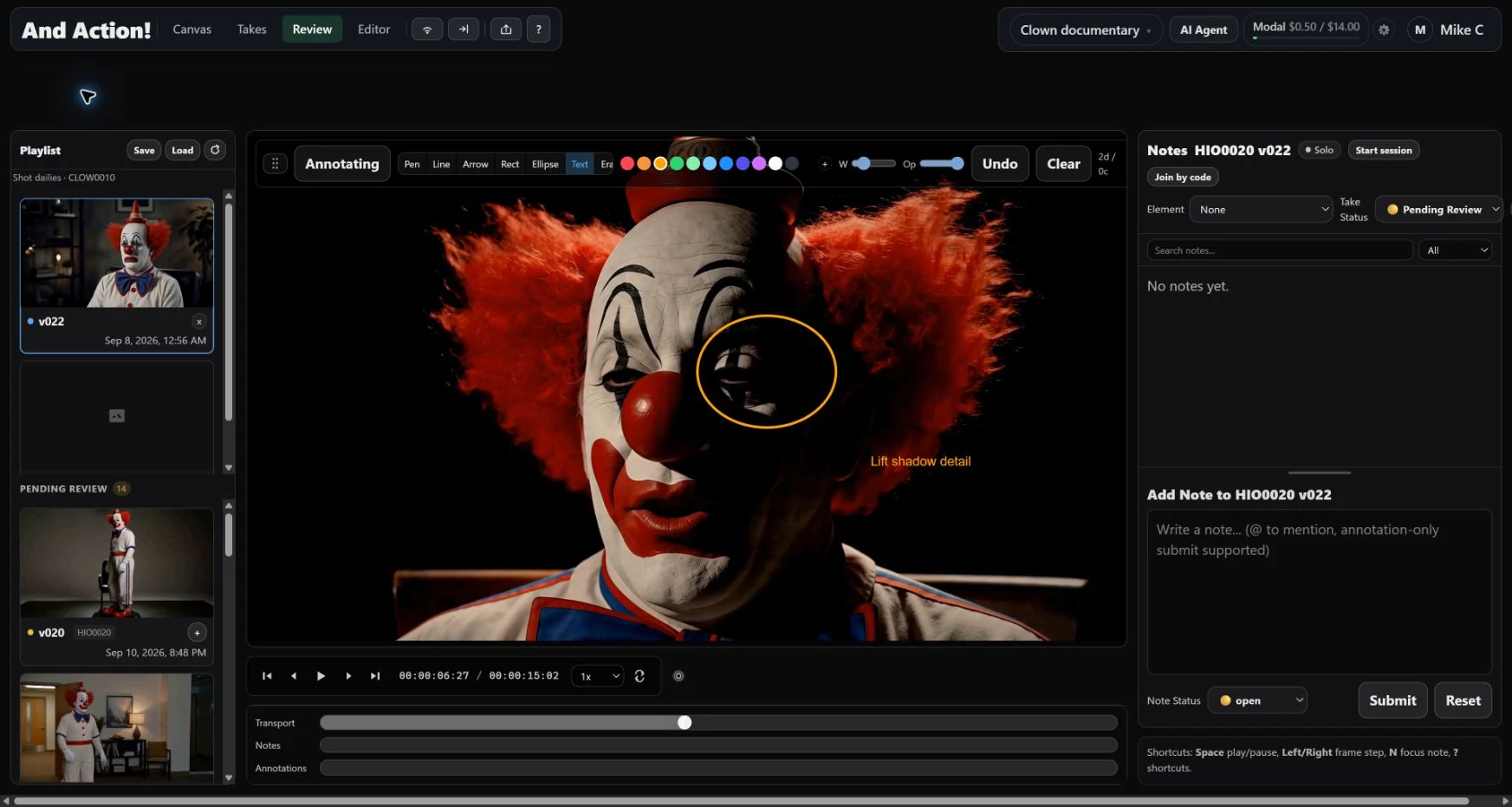
Use live review sessions and playlists to work through takes with the team.
Step through frames, draw annotations, and attach notes where the change is needed.
Keep review status and follow-up notes alongside the take, ready for the next pass.
05 / Editor
Bring shots onto a timeline, work with sound, and refine the sequence inside the same studio. The agent can help assemble the cut while you shape the timing and details.
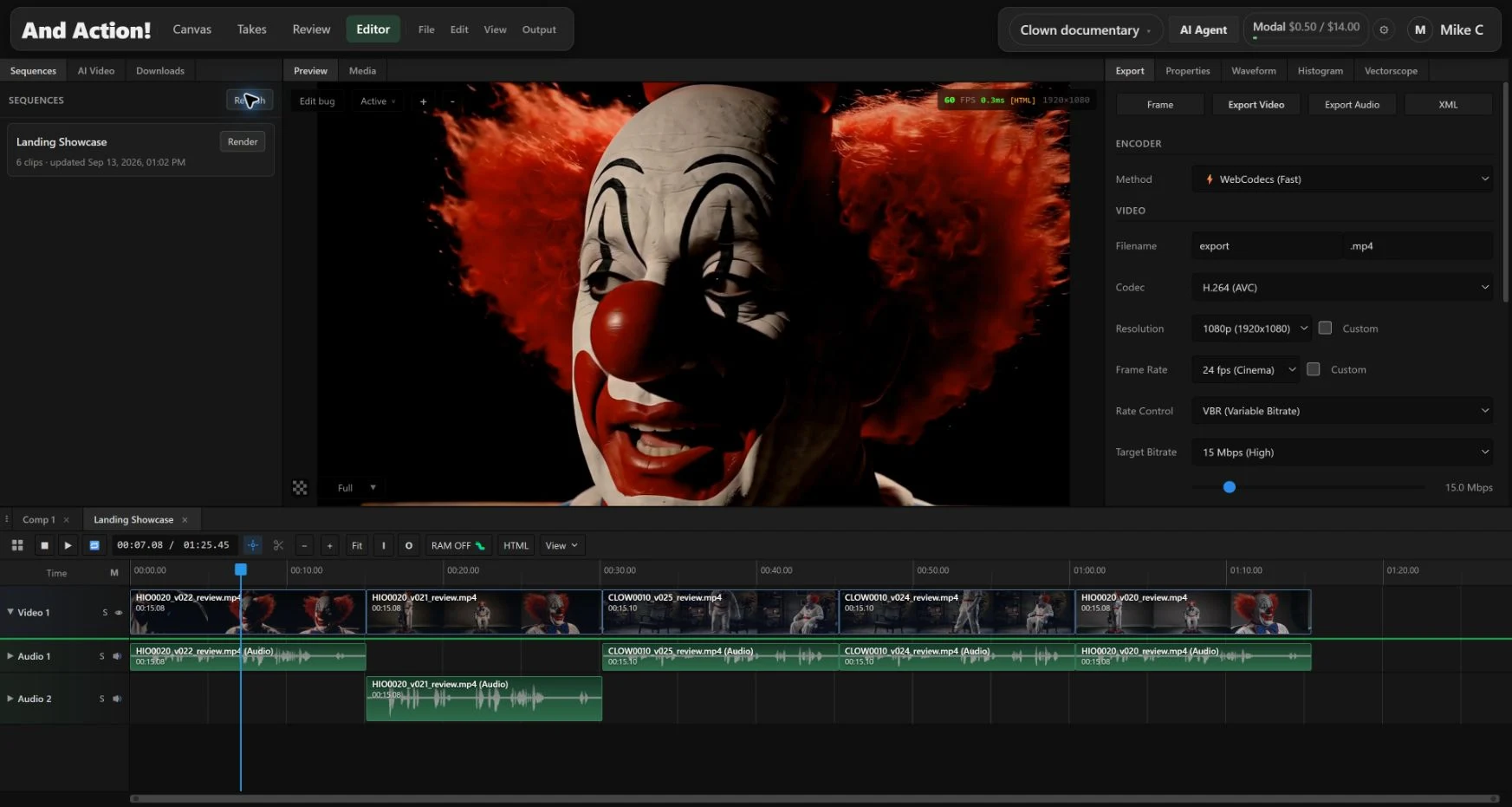
Arrange, trim, and layer clips. Work with transitions and compound clips as the edit develops.
Use multiple audio tracks, effects, masks, keyframes, and color tools to develop the cut.
Export the sequence or use editorial interchange options to continue finishing in your wider workflow.
06 / AI Agent
The agent works with the application: building and connecting nodes, helping run workflows, and editing on the timeline. Its work stays visible so you can inspect it and direct the next step.
Ask how a tool works or how to approach a task. Get guidance in the context of the canvas and project.
Ask it to build a workflow, work with existing takes, or assemble a first cut, then refine the result together.
The agent asks for approval before paid or destructive operations. Project preferences help guide future work.
07 / Creative tools
Mix media and supported generation engines in one workflow. Choose an engine per node and connect generation, refinement, and finishing steps around the shot.
Image & video
Generate images and clips, guide them with references, and extend, modify, upscale, or reframe the result.
Voice & sound
Bring voiceover, music, sound, transcription, and captions into the production alongside the image.
Shot direction
Work with shot size, lens, camera movement, character references, aspect ratios, and script breakdowns.
3D & performance
Use image-to-3D and audio-driven performance workflows where they fit the project.
Masks & finishing
Connect segmentation, object removal, grading, and other finishing operations into the workflow.
Reusable work
Keep published assets in the Studio Library and turn useful workflows into reusable starting points.
Available engines and operations depend on the studio's configuration and connected providers.
08 / Team & access
Every project has its own team and gated access. Project membership and roles define who can participate, with scoped access for specific sequences, shots, or assets.
Manage project membership, roles, and access. Control project administration and asset publishing.
Build and run creative work within the project and the access assigned to you.
View the work and contribute comments within your assigned access.
Open-source foundations
Review builds on OpenRV. The Editor builds on MasterSelects, extensively modified and integrated into And Action!'s production workflow. We gratefully acknowledge these projects and their contributors.
Studio conversations
Interested in the product or the thinking behind it? Get in touch about creative technology roles, studio partnerships, or strategic opportunities.
Currently in private beta. Access is limited while the studio is in active development.